How to Fix Audio Echo in a Remote Video Review
The client hears every line twice, but the cut sounds clean in your headphones. Before you touch the mix, ask them which sound repeats. A line from the edit and a voice from the call travel through different paths, and each points to a different test.
Pause the cut and ask one person to speak. Then have everyone mute their call microphones and replay a short excerpt. If the excerpt still sounds doubled, check where the encoder captures playback. If the echo appears during conversation, check the microphones, speakers, and whether the call audio is entering the stream.
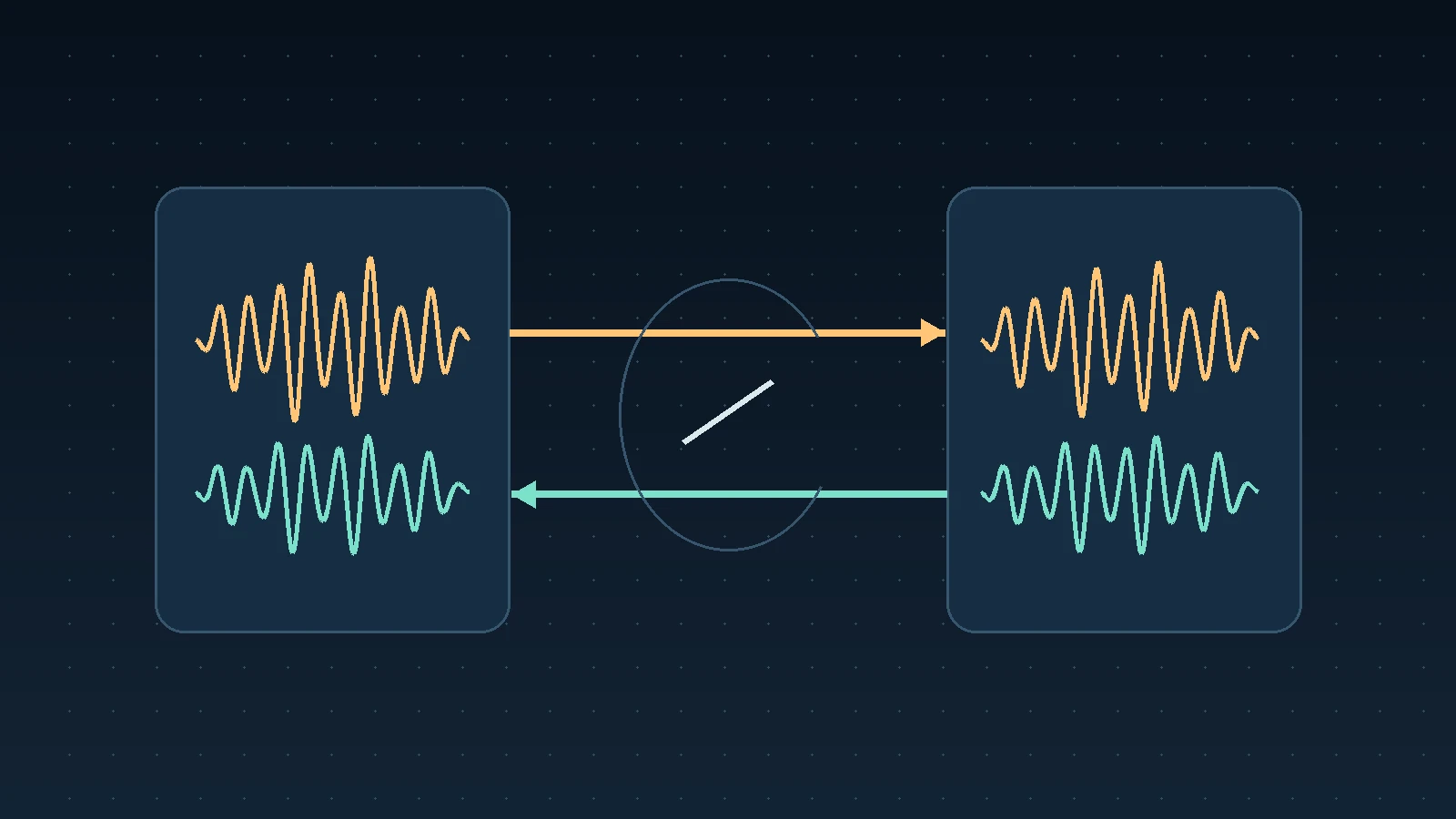
Give playback and conversation separate paths
Write down how sound reaches the reviewer. For a typical encoder-based review, the editing app feeds picture and timeline audio to the encoder. Your microphone feeds the review room. Your headphones receive the people speaking in the room. Keep your own viewer preview muted or closed while you present, and have a colleague listen from a separate device with headphones.
Call the timeline sound programme audio and the conversation talkback. Use those names in the encoder mixer and in the session briefing. That makes it easier to ask someone to mute a single path without silencing the part you need to test.
You can diagram the setup on paper. In this hypothetical session, the editor streams an interview cut and talks to a producer between takes.
| Sound | Route to the listener |
|---|---|
| Interview and music | Editing app → encoder → review stream |
| Editor's live voice | Room microphone → review call |
| Producer's reply | Review call → editor's headphones |
If a desktop capture picks up the producer's reply from the editor's headphones output, the reply can also reach the producer through the stream. Headphones help with sound travelling through the air. They leave that software routing path in place, so inspect both when testing.
Listen to each path on its own
Talkback first. Pause playback and temporarily mute the encoder's programme source. Ask one person to say a short sentence, then wait. If the echo stops when another participant mutes their microphone or switches from speakers to headphones, check that person's listening setup. Also check whether anyone has joined the same session on two nearby devices with speakers or microphones active.
Programme next. Mute the room microphones, restore the programme source and play ten seconds with a clear line of dialogue. Ask the listener whether they hear a single line, a delayed repeat, or a louder, smeared version. Watch the encoder's audio meters. If two sources move with the same line, mute one while the other stays active and replay the excerpt. A clean replay gives you a reason to remove the redundant route from that scene. If the listener loses sound, restore the source and check the other route.
Both together. Keep the encoder running, pause the edit and ask the remote listener to speak. If their voice moves a programme meter or comes back in the stream, inspect any capture that includes the system output or the browser. Then replay the excerpt and speak over a short section to confirm both voices remain intelligible on the receiving end.
Check for duplicate capture in OBS
A source can enter OBS as a global audio device and again as a source in the current scene. Check the device names in Settings → Audio and compare them with the device selections for the sources in your scene. Choose where the device belongs based on which scenes need it. OBS describes this overlap as a cause of echo. OBS audio sources
On supported Windows systems, OBS can capture an application's sound separately. If the editing application already has its own capture, check whether Desktop Audio or an audio-enabled window capture also includes that application. On macOS, check the overlap between macOS Audio Capture and macOS Screen Capture, which can both carry audio. Test the scene you will present after making any change, especially if you switch scenes during the review. OBS application audio capture · OBS macOS audio capture
If you use encoder audio monitoring, check where that monitored signal plays and whether an active source captures the same output. Start by changing one route at a time. The meter shows which source receives sound. The remote listener can confirm whether that sound actually reaches the review. OBS Audio Mixer Guide
Save a preflight for the next session
- Confirm the timeline version and choose a short excerpt with clean dialogue.
- Listen to the room microphones with timeline playback paused.
- Mute the room microphones and check the programme feed from a separate device.
- Check that remote speech stays out of the encoder's programme meter.
- Restore the intended mix and have the listener confirm that both paths are audible.
- Repeat the test after switching scenes, capture devices, or monitoring outputs.
If the listener hears a single voice but sees lips move out of step with it, test sync separately with a visible clap or a distinct on-screen impact. Use the same short excerpt for each comparison. Troubleshooting choppy review playback · Preparing a remote client review
For a FlowLabs session using a WHIP encoder, set up the review stream and room microphone, then run the listening test with a colleague before the client joins. Flow encoder setup · Try a live review in FlowLabs