How to Fix Choppy Video in a Remote Client Review
The cut plays smoothly in the edit suite. Halfway through the client review, someone says the picture is freezing. You lower the resolution, restart the stream, and lose track of which change helped.
Start by finding where playback first becomes uneven: in the editing application, in the encoder, or at the viewer. Then change one thing and replay the same section. That gives you a useful diagnosis before you compromise the picture or ask everyone to reconnect.
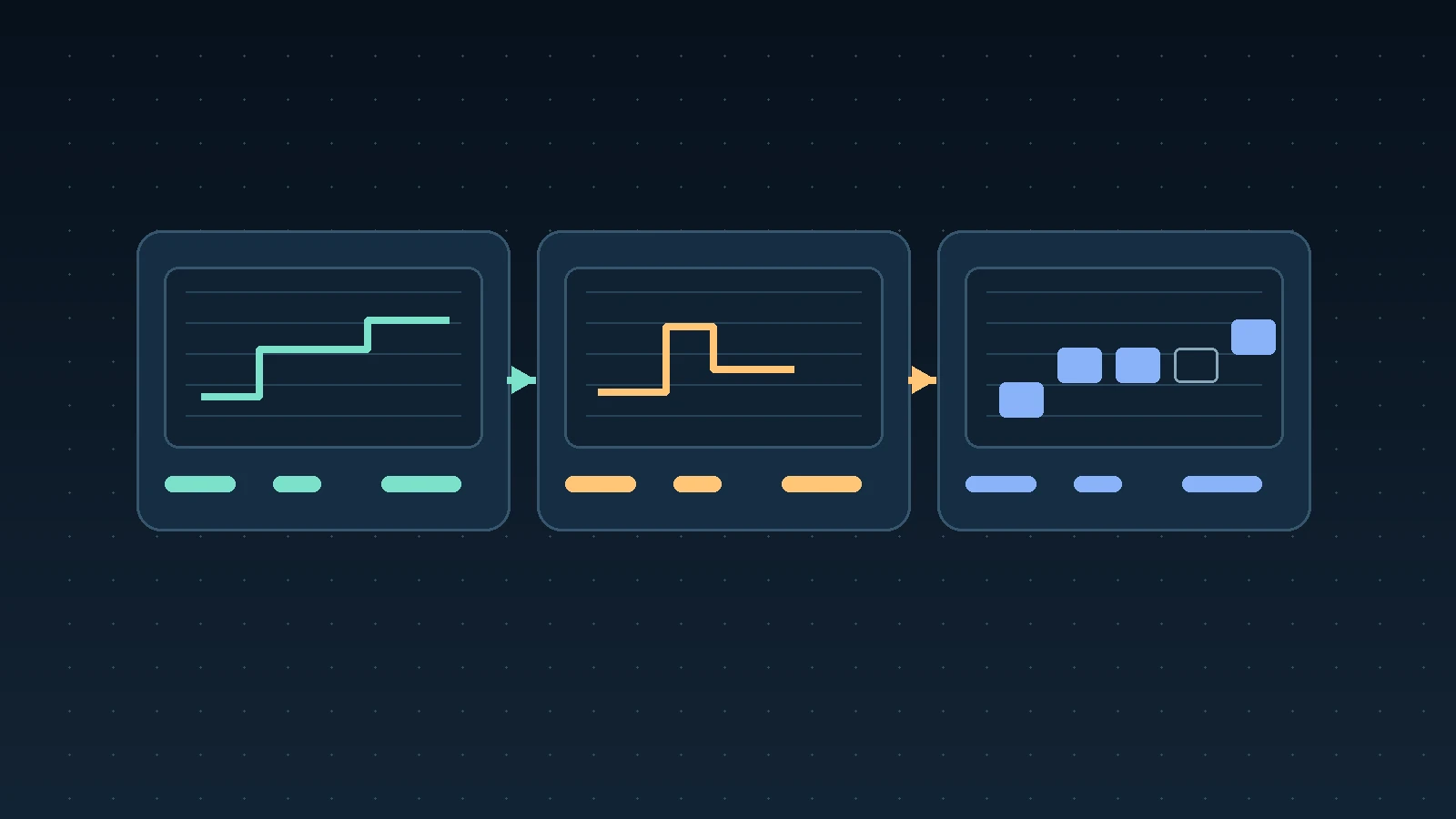
This guide is for editors and producers sending a live picture feed for remote review. It uses OBS as the encoder example, but the order of checks also works with other encoders. You do not need every attendee to become a network engineer; you need a repeatable way to narrow the problem.
First, make “choppy” specific
Ask the viewer what they see and whether audio continues. A frozen picture, uneven motion, and a picture that arrives late are different observations. Also ask whether everyone sees the issue at the same moment.
Choose a short section you can replay reliably: a camera move, an edit with visible motion, and a moment with clear sound. Use that section for every test. Comparing different material makes a change harder to judge.
Keep a simple record:
| Observation | First place to investigate | Useful next check |
|---|---|---|
| The timeline itself hesitates | Source playback and workstation load | Play the same section locally before streaming |
| Timeline is smooth, encoder preview is uneven | Capture, scene composition, or encoder workload | Simplify the capture setup and inspect encoder warnings |
| Several remote viewers freeze together | Shared sending path or service | Compare host-side evidence with a viewer on a separate connection |
| One viewer struggles while others see smooth motion | That viewer's connection, device, or browser | Compare another device or connection, one at a time |
| Playback is smooth but consistently late | Delay rather than frame continuity | Describe and investigate the delay separately |
This table suggests where to look first. It does not prove a cause: two viewers may share an office connection, and a shared failure could still involve the service.
Check the source before changing the stream
Play the test section in the editing application with the encoder stopped. If it already stutters, work on that local playback problem first. Try your normal rendered-preview or proxy workflow, then check again with the encoder running.
The second test matters because editing, effects processing, capture, and encoding can compete for the same workstation resources. A timeline that plays smoothly on its own may behave differently during a session.
Use proxies or previews appropriate to the decision being reviewed. If a lower-quality preview makes fine texture or finishing details impossible to judge, label that limitation and return to the proper source for approval.
Check what the encoder is struggling to do
Watch the encoder while replaying the problem section. In OBS, inspect the available statistics and warning messages. Look for whether the problem relates to rendering, encoding, or sending the stream; the exact evidence available can vary with the output method and version.
OBS's encoding performance guide explains that scene composition uses GPU resources and that simpler scenes and lower output demands can help an overloaded setup. For a client review, start by removing unnecessary overlays or filters and closing competing work you can safely pause.
If you test a lower output resolution or frame rate, record the change. A reduced frame rate may make the feed easier to sustain, but it can also change how motion feels. Recheck the actual delivery cadence before approving a pacing-sensitive edit.
Do not assume that lowering bitrate will fix a timeline or capture problem. First establish whether the encoder can produce a steady picture locally.
Check the host's connection to the service
If the source and encoder look steady, investigate the sending path. OBS's connection troubleshooting guide identifies an unstable connection or an unsustainable sending bitrate as causes of dropped frames, and recommends wired networking where possible.
Pause nonessential uploads and cloud sync, use Ethernet if available, and repeat the same test. A speed test is useful context, but a single good result does not establish that the connection stays stable throughout a review.
For Flow, follow the current WHIP encoder setup guide and stay within the session's allowed settings. OBS advice about a different streaming service or transport may include controls that do not apply to WHIP; avoid copying those settings blindly.
If the available connection cannot sustain the current feed, test a lower allowed bitrate and replay the section. Inspect detail as well as motion after the change. If lower bitrate makes the picture too compromised, test a lower resolution as a separate step and decide what that setup is suitable for reviewing.
Check the viewer's side separately
A healthy host does not guarantee that every viewer has the same experience. OBS's viewer buffering guide notes that viewing conditions differ across connections and devices, even when the sender is not reporting dropped frames.
If one person is affected, ask them to close nonessential downloads and heavy applications, then replay. If possible, compare a second connection on the same device, or a second device on the same connection. Keep the other conditions steady so the comparison tells you something.
Flow's standard WHIP setup forwards the encoded stream without transcoding, as its encoder guide explains. Do not assume a lower-bandwidth version will automatically appear for a struggling viewer. The selected sending settings need to work for the people in the session.
For example, imagine a review where two viewers see smooth motion and a third freezes. This is a hypothetical troubleshooting example, not a customer result. The third viewer retries on the same laptop with Ethernet and the section becomes smooth. That observation makes their wireless path a useful next lead; it does not establish that the host needs a different export or that the service can never be involved.
Know when to stop changing settings
If several viewers on independent connections still experience the issue while local playback remains steady, collect evidence and escalate through the service's support channel. Record the time and timezone, browser and operating system versions, encoder settings, scope of the problem, and what each controlled test changed. Share diagnostic material through the support process, taking care to exclude stream keys and confidential client footage.
Do not sign off timing, sync, or a subtle motion change while playback remains unreliable. Use a suitable alternative review path or arrange a retest. The client review session guide can help you prepare that fallback without losing track of the decision the meeting needs.
A preflight you can repeat before the client joins
- Play the test section locally, then again while encoding.
- Check the encoder for workload warnings or sending problems.
- Confirm the stream settings match the current session limits.
- Test the feed from a viewer on a separate connection.
- Listen for continuity and watch the most demanding motion.
- Record the working settings and the fallback review method.
If live conversation is the right format for your next approval, try a review in FlowLabs with this preflight before inviting the client. Keep the short test section ready: when someone reports a problem, you will have something consistent to compare.